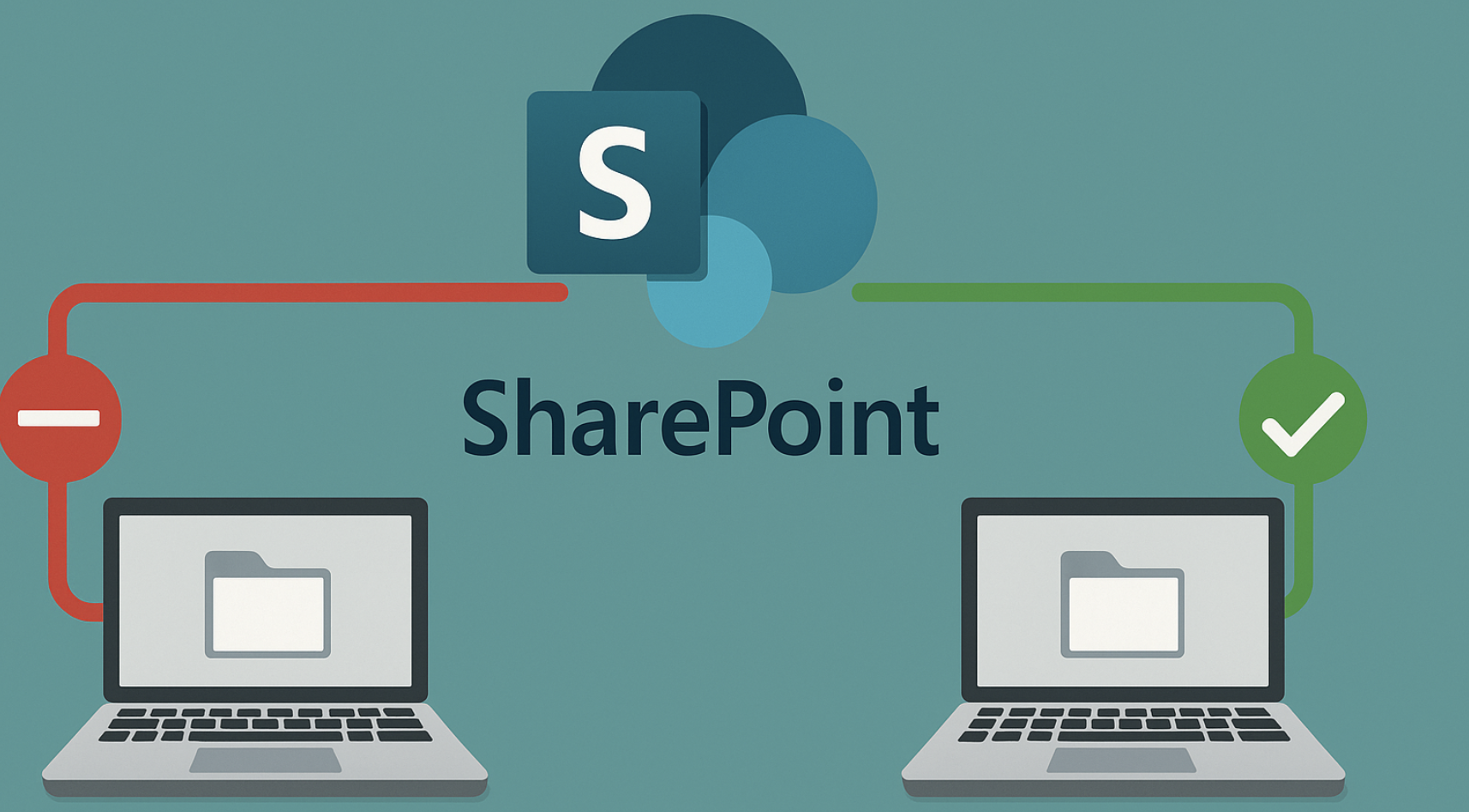
An organization wants to make sure that only approved devices can reach selected SharePoint sites containing confidential information. The goal is to prevent sensitive content from being opened on unapproved devices, such as unmanaged or private ones. Everywhere else in the tenant, the existing access rules stay as they are.
Notice what the requirement actually asks for. It is not «protect these documents», it is «protect access to these locations». We can solve this case with a combination of sensitivity labels, CA policy and authentication contexts. Let´s find out how!
In this case, an approved device means a device marked as compliant in Intune.
The three moving parts
The selected SharePoint sites are marked with the sensitivity label Confidential. An authentication context and a Conditional Access policy then restrict access to those sites. Everything else in SharePoint continues to work exactly as before. Wiring the three together is the part that most implementations get wrong on the first attempt, so let’s look at each of them first.
Part 1 of 3: Sensitivity labels on containers
Most people meet sensitivity labels as a control for files and emails, where the label can encrypt content and travel with the document. Users see these labels when they click on the Sensitivity icon in Word. This is the most common use of labels.
But sensitivity labels can also apply to containers such as SharePoint sites, Microsoft 365 Groups and Teams. This is a different animal. It does not encrypt anything, and it does not apply to the files in SharePoint libraries. So even though a SharePoint site is labeled Confidential, that does not mean the documents inside it are labeled Confidential (for that, we need to set up auto-labeling policies). A label that is applied to a SharePoint site configures the container itself: privacy settings, guest settings, external sharing, and the setting we will explore, which is which authentication context applies to a site.
So, it might be a good idea to have one set of labels for containers and another set for files. Using the same label name in both places invites misunderstanding, because a label called Confidential that applies encryption to files does not apply encryption to a site with the same label. Users, and quite a few administrators, often assume that it does.
Part 2 of 3: Authentication contexts
An authentication context in Microsoft Entra is a small tag, one of 99 available IDs in the tenant, that a resource can be marked with so that Conditional Access treats it differently from the rest of the service.
The value is granularity. A Conditional Access policy that targets the Office 365 SharePoint Online cloud app applies to all of SharePoint and OneDrive. That is often too blunt: requiring a compliant device for every site would break scenarios you want to allow. An authentication context lets you attach a stricter set of controls to specific resources inside the application, without touching the rest of it. Authentication contexts apply to containers, and that is exactly what we need in this case.
Part 3 of 3: Conditional Access policy
Conditional Access is where the actual requirement lives: compliant device, MFA, authentication strength, terms of use, sign-in frequency, and so on. The authentication context by itself enforces nothing. It is a label on a resource, not a rule.
How the three parts connect
So, let’s connect the sensitivity label, the authentication context and the CA policy.
The authentication context is the join between the sensitivity label and the Conditional Access policy. And this is important: both sides must point at the same context! The label declares «this site requires context c20», and the Conditional Access policy declares «when context c20 is requested, require a compliant device». Neither statement means anything on its own.
At runtime the sequence looks like this:
- A user navigates to a labeled SharePoint site.
- SharePoint reads the site’s label settings and finds an authentication context.
- SharePoint issues a claims challenge to Entra ID, asking for a token that satisfies that context.
- Entra ID evaluates the Conditional Access policies that target the context.
- If the conditions are met, a token carrying the context claim is issued and access proceeds. If not, access is blocked, or the user is prompted to satisfy the missing requirement, which is where the term step-up authentication comes from.
Two consequences follow from this design, and both explain the most common support cases:
- Label configured, no CA policy. The site requests a context that no enabled CA policy targets. There is nothing to satisfy, so access goes through unrestricted. The site behaves as if the label had no access settings at all, which looks like a working configuration until someone tests it from a personal laptop.
- CA policy configured, no label. The policy sits idle, because no resource ever requests that context. Nothing is protected, and the policy will not show as applied to any sign-in.
A note on licensing
Creating an authentication context and enforcing it through Conditional Access requires Microsoft Entra ID P1, included in Microsoft 365 Business Premium, E3 and above.
Applying a label to containers sits in the premium Purview tier. That comes with E5 or A5, or by adding the Microsoft Purview Suite to a Business Premium, E3 or A3 base.
Let’s run through the actual configuration
Sync sensitivity labels to Entra ID
We start from an existing sensitivity label in Purview called Confidential. To apply the label to containers such as SharePoint sites, label support for groups must be turned on in Entra ID and the labels synced across.
- Enable the functionality in Entra ID that allows labels to be published to groups (the EnableMIPLabels group setting).
- Synchronize the sensitivity labels to Entra ID with Execute-AzureAdLabelSync.
The label is now available for use on SharePoint sites. Allow time for propagation: it can take up to 24 hours before a newly published label is usable on containers. You can check whether the sync is completed by editing the label in Purview. If Groups & sites is grayed out in the label scope page, container support is not enabled yet.
Mark the SharePoint sites as confidential
When the propagation is complete, we can apply the label to the SharePoint site by editing the Site Information panel:
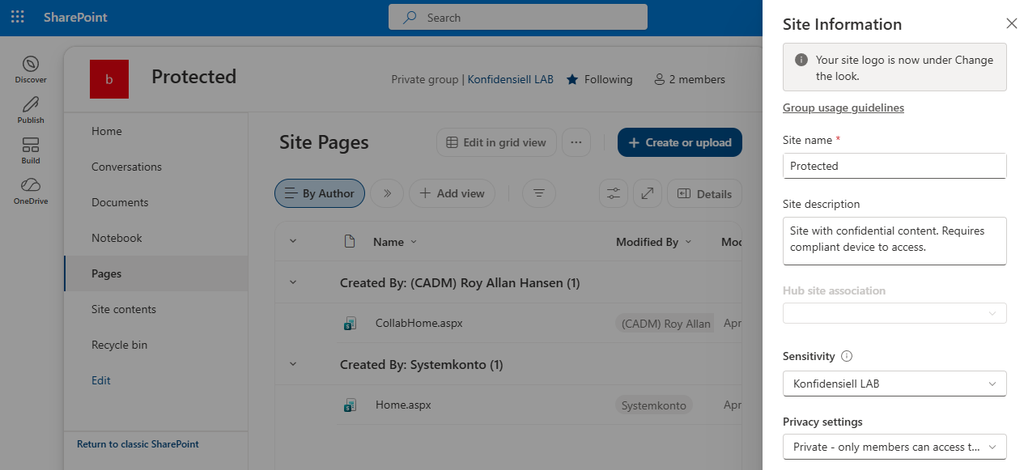
Here we apply the label directly to the site. Of course, we can also use SharePoint Admin Center. Note that this cannot be done at the SharePoint root site.
Create the authentication context in Entra ID
Open Entra ID, go to ID Protection, Conditional Access and select Authentication Contexts.
Create a new context as shown below:
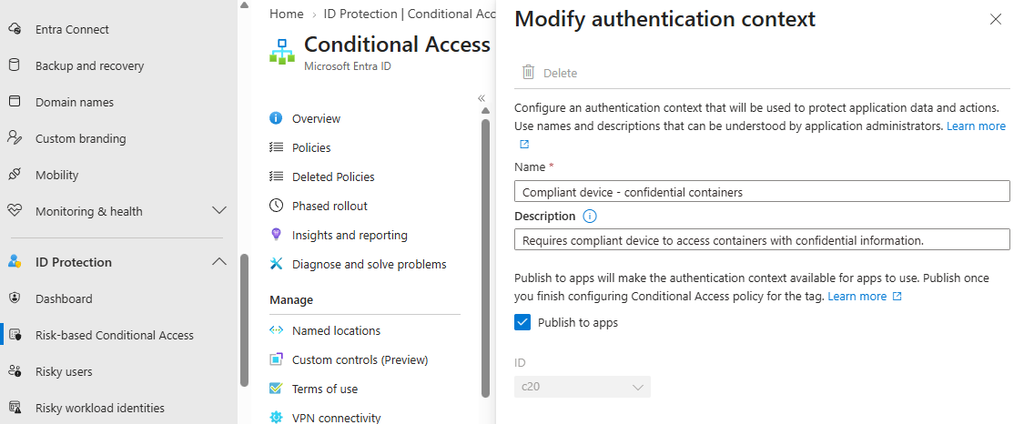
Note the ID assigned to the context (c20 in this example). It is the value that actually travels in the claim, and it is useful when reading sign-in logs. Name the context after what it requires, not after the site it happens to protect. The requirement is what other sites will want to reuse later.
Update the sensitivity label in Purview
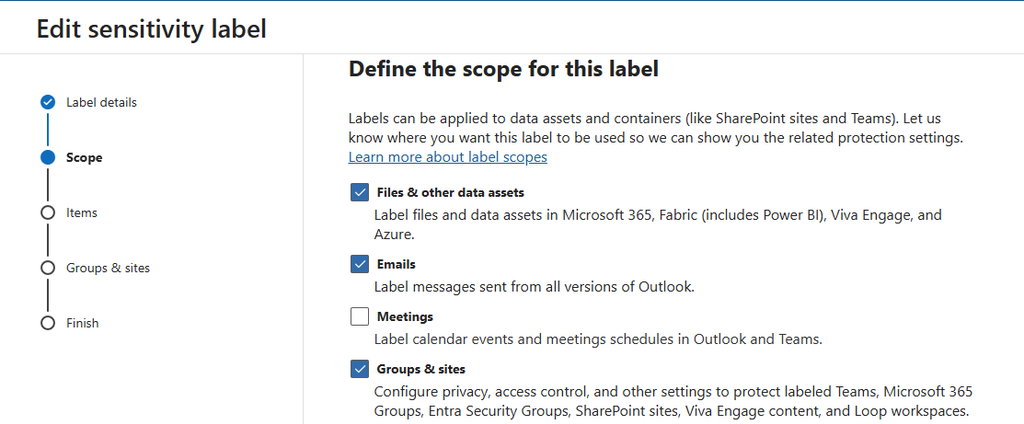
Now it’s time to apply this context to the sensitivity label in Purview. Open Information Protection and create or edit the Confidential label.
Enable Groups and Sites in the label scope:
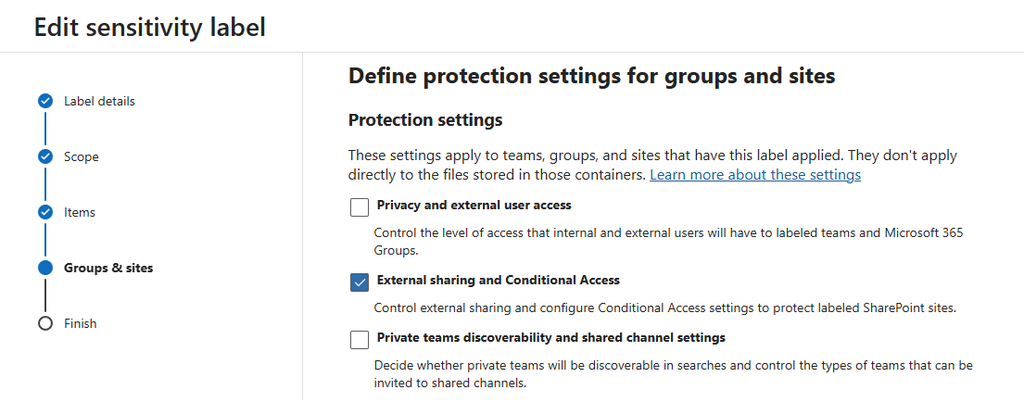
Next, enable External sharing and Conditional Access settings:
Finally, we choose the authentication context we created in Entra ID:
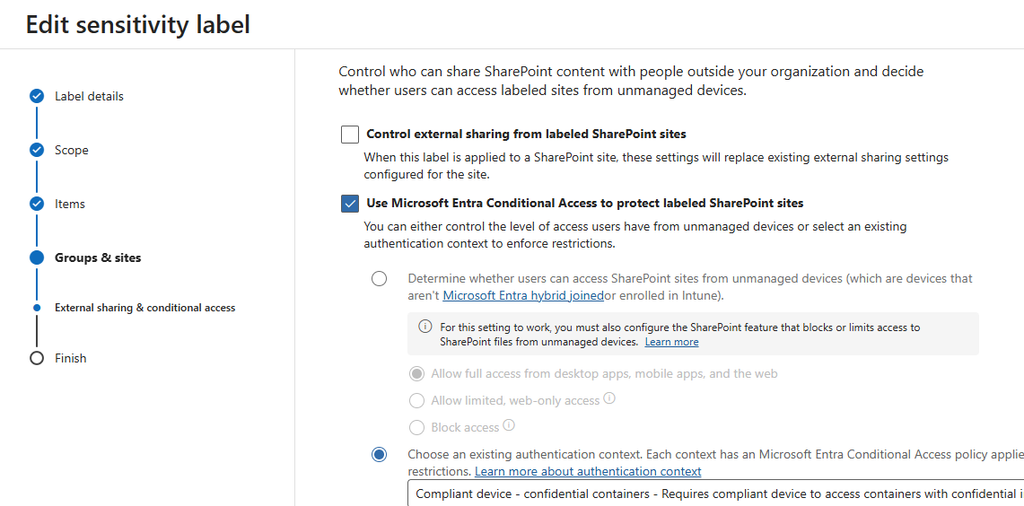
The label is now configured to use the authentication context we created. Sites already carrying the label will pick up the new setting, but give it time to apply.
Create the Conditional Access policy
Open Entra ID, go to ID Protection, Conditional Access and create a new policy.
Under Target Resources, choose Authentication context and select the context we created.
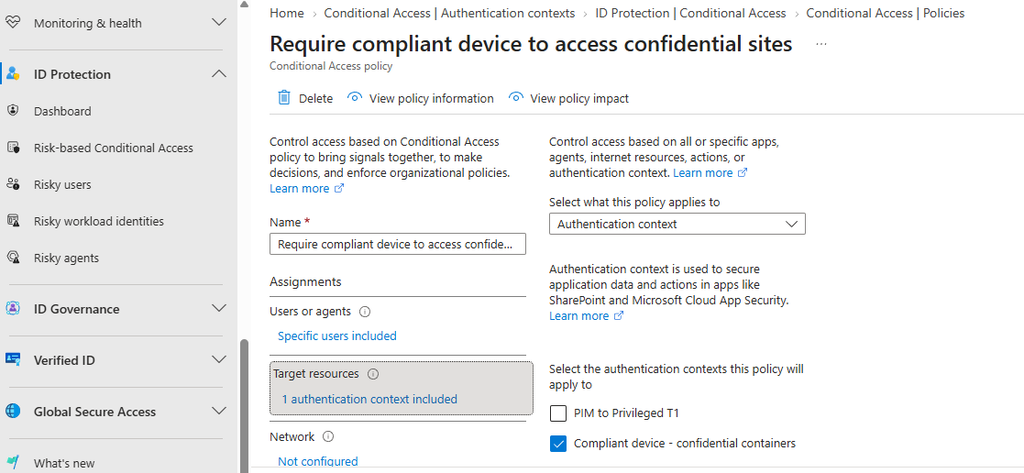
Under Grant, select Grant access and enable Require device to be marked as compliant. Take a moment on that last step. The requirement is never stronger than the Intune compliance policy behind it. If that policy only checks the OS version, a device can be marked compliant while missing disk encryption or an up-to-date antivirus signature, and Conditional Access will let it straight into the confidential site. Read the compliance policy before you rely on it.
Both sides now reference the same context, and the configuration is complete.
Note what the policy does not target: the SharePoint Online cloud app. That is deliberate. The whole point is to avoid applying the requirement to all of SharePoint.
Verify the configuration
Test from a compliant device and from an unmanaged one and confirm the difference. The compliant device should get in, the unmanaged one should not.
If it does not behave as expected, the sign-in logs in Entra ID will tell you why. Open the sign-in event for the test user and look at the Conditional Access tab. You should see the ordinary policies applied, and then the authentication context policy applied as a separate evaluation. If that second entry never shows up, the context is not reaching Entra ID, and the problem is on the label side rather than in Conditional Access.
Before you roll it out
Authentication contexts are enforced by SharePoint and by the clients that talk to it, and not every client handles the claims challenge. Microsoft maintains a list of unsupported scenarios. The ones that matter most in a normal Microsoft 365 environment:
- The OneDrive sync client will not sync sites that have an authentication context.
- The SharePoint mobile apps on iOS and Android are not supported.
- Outlook on Windows, Mac, Android and iOS cannot communicate with protected sites.
- Teams channel meeting recording upload fails, and so does renaming folders from Teams.
Check the list against the clients your organization actually uses, and pilot on a single site before applying the label more widely.
Wrapping up
And that is the whole mechanism: the label carries the classification and points at a context, the policy carries the requirement and points at the same context, and SharePoint asks Entra ID to decide. Get both ends pointing at the same place, and the rest is ordinary Conditional Access work.